5.1 - Operating Systems
What is systems software?
Systems software consists of programs that manage and maintain the basic operations of a computer system, ensuring hardware and other software work effectively. It acts as a bridge between the user, applications, and the computer's hardware.
Unlike application software, which focuses on specific tasks like word processing or web browsing, systems software handles essential behind-the-scenes functions. The two main types are operating systems and utility software.
Types of systems software
- Operating system (OS) - A comprehensive program that controls the computer's hardware, runs applications, and provides a user interface. It is essential for most devices, from desktops to smartphones.
- Utility software - Programs that support the OS by performing maintenance tasks, such as virus scanning, disk defragmentation, or file compression. These tools help keep the system running smoothly.
Systems software is crucial because it enables the computer to function efficiently, manages resources, and provides security features.
Core functions of operating systems
An operating system is a complex set of programs that oversees the computer's hardware and software resources. It ensures everything runs smoothly by handling tasks like hardware communication, user interaction, and resource allocation.
Operating systems are found on nearly all computing devices and perform several key roles to maintain system stability and usability.
Main functions of an operating system
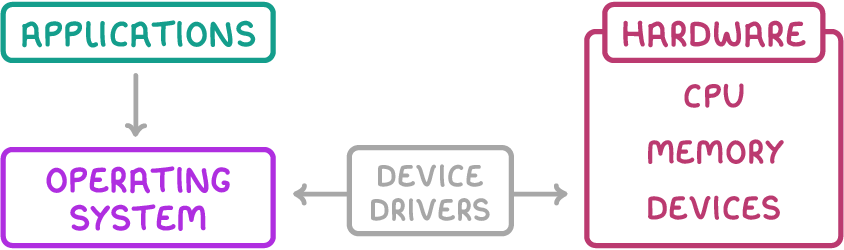
- Communicating with hardware components using specialised programs called device drivers.
- Providing a platform where applications can run without directly accessing hardware.
- Enabling multi-tasking by managing memory and processing time.
- Handling file organisation and storage on disks.
- Managing user accounts and system security to protect data and prevent unauthorised access.
These functions work together to create a stable environment for users and applications, allowing the computer to perform multiple operations efficiently.
Device drivers and hardware communication
Device drivers are specialised programs that allow the operating system to communicate with hardware components, acting as translators between the OS and devices. Without them, the OS could not send or receive signals from hardware like printers, keyboards, or graphics cards.
Every piece of hardware, whether internal (like a graphics card) or external (like a mouse), requires its own specific driver to function correctly.
How device drivers work
- Installation process - When the computer starts up (boots), the OS loads the appropriate drivers for connected hardware. If new hardware is added, the OS detects it and installs the matching driver automatically or prompts the user.
- Role as translators - Drivers convert OS instructions into signals the hardware understands, and vice versa, ensuring seamless interaction.
- Updates and maintenance - Hardware manufacturers release driver updates to fix errors (bugs), add new features, or enhance performance. These can be installed automatically by the OS or manually by the user.
Keeping drivers up to date is important because outdated versions can cause compatibility issues or reduce system efficiency.
User interfaces
A user interface is the means by which people interact with a computer system, allowing them to input commands and receive output. It makes complex operations accessible and user-friendly.
There are different types of interfaces, each suited to specific needs and devices. The choice depends on factors like the user's expertise and the device's input methods.
Types of user interfaces
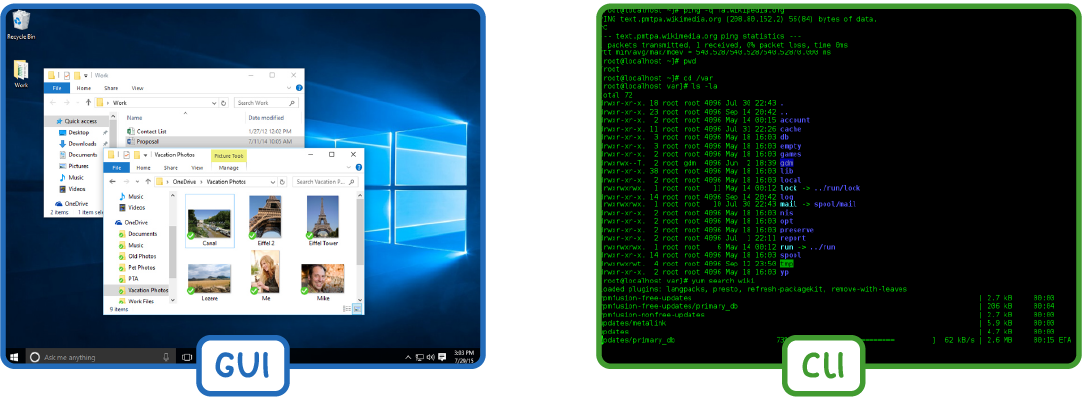
- Graphical user interface (GUI) - A visual system using elements like windows, icons, menus, and pointers (often called WIMP). It is intuitive for everyday users and supports interactions via mouse, keyboard, or touch gestures (e.g., pinching to zoom on smartphones). GUIs are common on desktops and mobiles because they are easy to navigate.
- Command-line interface (CLI) - A text-based system where users type specific commands to perform tasks. It uses fewer system resources than GUIs, making it efficient for servers or low-power devices. Advanced users prefer it for its power, as it allows automation through scripts (short programs that execute a series of commands).
GUIs are optimised for visual interaction, while CLIs offer more control for technical tasks, such as system administration.
Multi-tasking and resource management
Multi-tasking allows a computer to run multiple applications at the same time, making the system more efficient for users. The operating system manages this by carefully allocating resources like memory and CPU time.
In a multi-tasking OS, applications appear to run simultaneously, but the OS switches rapidly between them to create this illusion.
Memory management
The OS oversees random access memory (RAM) to ensure applications have the space they need without conflicts.
How memory management works:
- Loads required parts of an application into memory when it opens.
- Adds more data to memory as the application runs.
- Removes unused applications from memory to free up space.
- Assigns specific memory addresses to each process to prevent one application from interfering with or overwriting another's data.
This prevents crashes and ensures smooth operation.
CPU management
The OS divides the CPU's processing time among applications by switching rapidly between them.
How CPU management works:
- Prioritises important processes for faster execution.
- Manages data transfer to and from virtual memory (a portion of the hard disk used as extra RAM).
- Uses memory buffers (temporary storage areas) to handle data flowing at different speeds between components.
Effective resource management keeps the system responsive, even when running demanding tasks.
File and disk management
Files are collections of data stored on a computer, such as documents, images, videos, or spreadsheets. The operating system manages these files to keep data organised and accessible.
File extensions (e.g., .jpg for images or .mp3 for music) indicate the file type, helping the OS open them with the correct application.
File management features
- Organises files into a hierarchical structure of folders and subfolders for easy navigation.
- Handles tasks like naming, saving, moving, editing, and deleting files.
- Ensures files can be searched and retrieved quickly.
Disk management
The OS also controls how data is stored on storage devices like hard disks or solid-state drives (SSDs).
How disk management works:
- Divides the disk into sectors (small storage units) for efficient data placement.
- Tracks which sectors are free and decides where to write new data.
- Tries to store file data in adjacent sectors to speed up access.
- Uses utility software, such as defragmentation tools, to reorganise fragmented data and maintain disk performance.
Proper disk management prevents data loss and optimises storage space.
User management and security
Operating systems can be designed for single-user or multi-user environments, determining how many people can access the system at once.
Types of user systems
- Single-user systems - Allow only one user at a time, common on personal devices like laptops.
- Multi-user systems - Support multiple users simultaneously, often used in servers or mainframes. For example, banking systems let many thousands of customers access central data at the same time.
User account control
The OS manages user accounts to control access and protect data.
Security features:
- Assigns different permissions, so users can only access specific files or resources.
- On personal computers, each user has their own private data area.
- Implements security measures like passwords, fingerprints, or retina scans to verify identity and prevent unauthorised access.
These features help safeguard against theft or misuse, ensuring data privacy and system integrity.