2.8 - Images
Bitmap images and pixel representation
Computers store images as data made up of bits, just like any other type of information. Most everyday images, such as photos, are bitmap images, which are composed of a grid of tiny dots known as pixels.
Each pixel represents a single point of colour in the image. The colour of every pixel is encoded using a binary code, which allows the computer to recreate the image accurately.
How binary codes represent colours
Examples of colour representation:
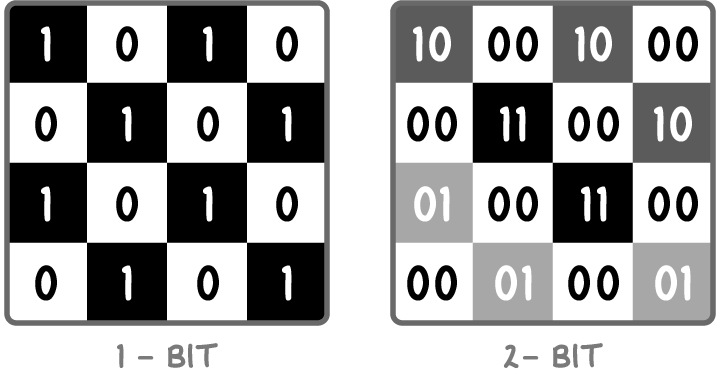
- The number of bits in the binary code for each pixel determines how many different colours can be used in the image.
- A 1-bit image uses only two colours, typically represented as 0 for white and 1 for black, creating simple black-and-white pictures.
- A 2-bit image can represent four colours, with each pixel using one of the binary values: 00, 01, 10, or 11, allowing for basic shades like white, light grey, dark grey, and black.
- Increasing the number of bits per pixel expands the range of possible colours and shades, leading to more detailed and realistic images.
This system builds up the entire image by combining the colours of all pixels in the grid.
Colour depth and available colours
Colour depth refers to the number of bits allocated to each pixel to represent its colour. A higher colour depth means more bits per pixel, which allows for a greater variety of colours.
Formula for total number of colours
Where:
- n = Number of bits per pixel (bpp), also known as colour depth
Examples of colour depth
Common colour depths:
- 1-bit colour depth - = 2 colours (e.g., black and white).
- 4-bit colour depth - = 16 colours.
- 24-bit colour depth - = 16,777,216 colours, which is common in modern devices as it can produce more colours than the human eye can distinguish (around 10 million).
Most devices use 24-bit colour depth by assigning 8 bits each to the levels of red, green, and blue (RGB) in every pixel.
As colour depth increases, images can display finer details in shades and tones, but this also affects the overall file size.
Image resolution and quality
Image resolution describes the total number of pixels in an image, usually expressed as width × height.
Impact of resolution:
- A higher resolution means more pixels are used to form the image, resulting in sharper and more detailed visuals.
- Resolution directly influences image quality.
- However, boosting resolution increases the number of pixels that need to be stored, which impacts the storage requirements.
Calculating image file sizes
The file size of a bitmap image depends on both its resolution and colour depth. Knowing these allows you to calculate the space needed to store the image.
Formula for file size in bits
Where:
- Width = Number of pixels across the image
- Height = Number of pixels down the image
- Colour depth = Bits per pixel (bpp)
Converting to other units:
- Divide by 8 to get bytes (since 1 byte = 8 bits).
- Divide by 1,000 to get kilobytes (KB), by 1,000 again for megabytes (MB), and so on.
Using higher resolution or colour depth creates more bits overall, leading to larger files but better quality.
Worked example: Calculating image file size
Calculate the file size, in KB, of a 4-bit image that is 800 pixels wide and 600 pixels high.
Step 1: Identify the values
- Width = 800 pixels
- Height = 600 pixels
- Colour depth = 4 bits per pixel
Step 2: Apply the file size formula
Step 3: Convert to bytes
Step 4: Convert to kilobytes
Metadata for image display
Metadata is additional information stored within an image file that helps computers interpret and display the binary data correctly.
Key components of metadata
Essential metadata includes:
- File format - Specifies the type of image file.
- Height and width - Defines the dimensions in pixels.
- Colour depth - Indicates the bits per pixel.
- Resolution - Details the pixel density.
Without metadata, a device could not properly reconstruct the image from the pixel data, potentially resulting in distorted or unviewable output.